note before you start:
this template is still very much a work in progress and an “early access” version that was based on my personal website, so you might find some leftovers from my personal site or unnecessary bits here and there. it’s not perfect yet, so let me know if you find anything that needs fixing or feel free to contribute yourself and create a pull request on Github
why i built this
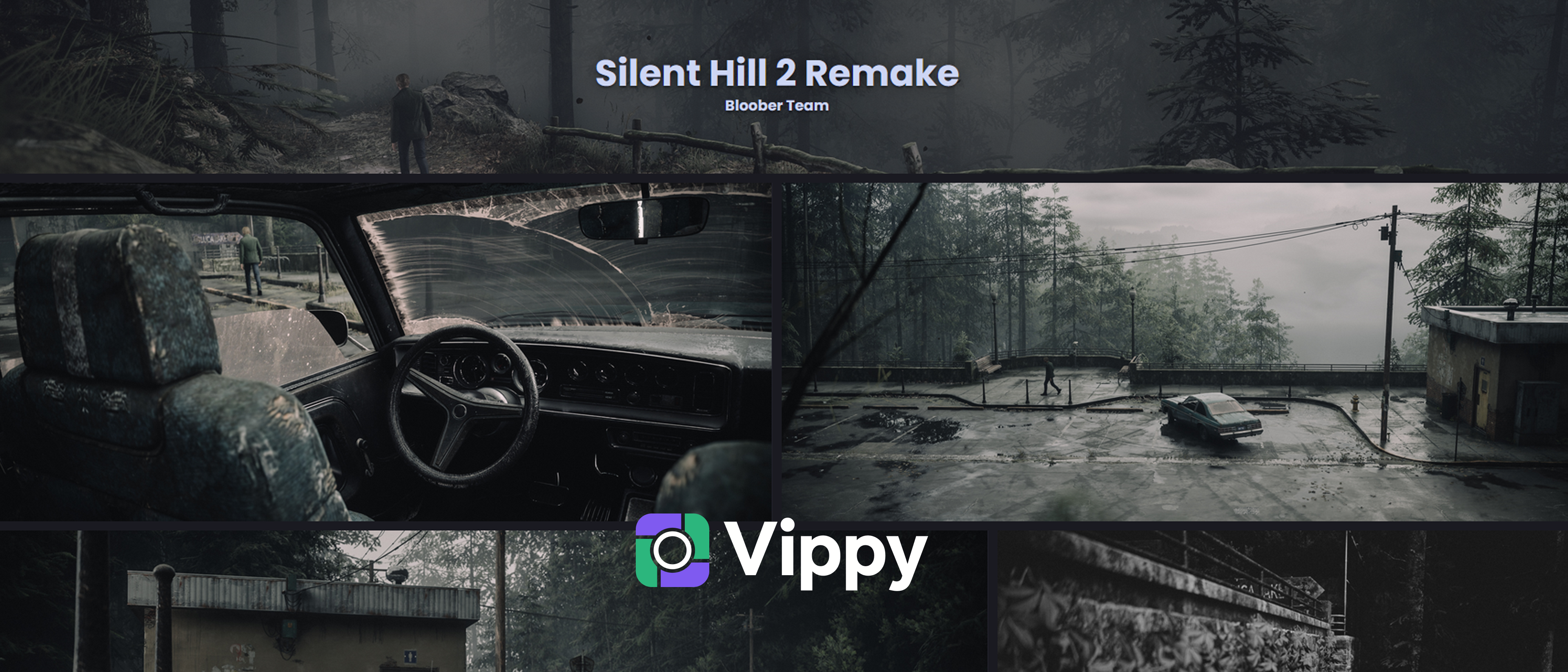
hey there. if you’re into virtual photography, you’ve probably wondered where to showcase your work without spending a fortune on hosting or dealing with complicated setups. i created Vippy (name inspiration from VP “virtual photography”) because i wanted a simple, affordable way for virtual photographers to have their own corner of the internet – a place that’s truly theirs.
most portfolio platforms either charge monthly fees or lock you into their ecosystem. with Vippy, you own everything. your site, your photos, your rules. and the best part? it costs just 1$ to get started with full cloud storage for your images.
this guide and template is inspired by the original guide from originalnicodr, but i wanted to take it a level further and make it simpler for people who want a faster process with fewer code/technical configurations and i included a much simpler system for uploading photos. lots of thanks to him for the inspiration and resources!
what you’re getting
Vippy is a static website template built with Jekyll that doubles as your virtual photography portfolio. it comes with a built-in admin panel where you can manage your content without touching code. you can enable blog posts, create project showcases, build photo albums, and upload images directly to cloud storage, all from a simple interface.
think of it as your personal photography website that you can customize however you want, with the added bonus of not needing to be a developer to use it.
what you’ll need before starting
- about 30 minutes of your time
- a Github account (free)
- a Backblaze account (free to sign up, 1$ minimum to use storage)
- basic computer skills (if you can install an app, you can do this)
don’t worry if you’ve never used Github before. i’ll walk you through everything step by step and feel free to reach out if you have any questions or need help along the way (you can find my socials in the footer of the website).
step 1: create a Github account and fork the repo
first things first, head over to github.com and create a free account if you don’t have one already. Github is where your website’s files will live, and it’s what makes your site work.
once you’re logged in, go to the Vippy repository: github.com/nairdahh/Vippy
look for the “Fork” button in the top right corner and click it. this creates your own copy of Vippy that you can modify however you want. it’s like making a photocopy of a template that’s now yours to customize
IMPORTANT: when naming your repository (or renaming it later in settings), you must name it exactly yourusername.github.io (replace “yourusername” with your actual Github username). this is crucial because it allows your website to be hosted at that clean URL. if you name it anything else (like “vippy”), your website will be at yourusername.github.io/vippy, which works but isn’t as clean.
step 2: detailed setup guide
now that you have your own copy, let’s get it running on your computer. don’t worry, i’ll walk you through installing the tools you need.
1. prerequisites (install these first)
before we clone the code, you need to install two programs that make the website and admin panel work.
- Ruby & Jekyll (for the website generation):
- windows: download and install RubyInstaller (choose the recommended version with Devkit). when the installation finishes, a command window will open asking you to install components – press ENTER to install everything.
- macOS/linux: check out the official Jekyll installation guide for your specific system.
- Node.js (for the admin panel):
- download and install the “LTS” version from nodejs.org. just click next through the installer.
2. get the code on your computer
you can do this easily with Github Desktop (recommended) or via the command line.
option a: using Github Desktop (easier)
- download and install Github Desktop.
- log in with your Github account.
- go to
file > clone repository. - select your forked
yourusername.github.iorepository from the list. - choose a folder on your computer where you want to save it and click “Clone”.
option b: using command line (git) open your terminal/command prompt and run:
git clone https://github.com/yourusername/yourusername.github.io.git
cd yourusername.github.io
3. install dependencies
now we need to tell the computer to download all the little pieces of code that make the site run.
for the website (Jekyll): open your terminal (or use the one in VS Code) inside the project folder and run:
bundle install
for the admin panel: in the same terminal, move to the admin folder and install its requirements:
cd vippy-admin
npm install
step 3: running your website locally
to fully utilize the template, you need to run both the website (to see it) and the admin panel (to manage it).
1. start the website open a terminal in the root folder of your project and run:
bundle exec jekyll serve
your site will now be live at http://localhost:4000.
2. start the admin panel open a second terminal (don’t close the first one!), go to the admin folder, and start the server:
cd vippy-admin
npm start
the admin dashboard will be available at http://localhost:3001/vippy.
step 4: set up your Backblaze account
here’s where that 1$ comes in. Backblaze is a cloud storage service that’s incredibly affordable. sign up for a free account – you won’t be charged anything yet.
once you’re in:
- navigate to the B2 Cloud Storage section
- create a new bucket (this is basically a folder in the cloud for your photos)
- make sure the bucket is set to public
- note down your bucket name and the folder path
the 1$ is the minimum charge to make the bucket public and use the storage. after that, you only pay for what you actually use, which is pennies for most personal portfolios only if you exceed the daily limits, so keep an eye for that
important about limits: Backblaze B2 is extremely generous with its free tier. you get 10GB of storage free and 1GB of daily download bandwidth free. for a personal portfolio, this is usually plenty. however, if your site goes viral, you might hit the bandwidth limit. keep an eye on your Backblaze caps and alerts. setting up billing alerts is a good idea to avoid surprises, though the costs are tiny ($0.005/GB) if you do go over. to help with this, i also implemented a compression tool for uploading photos that automatically reduces their file size while keeping the quality as high as possible.
step 5: connect Vippy to your Backblaze bucket
now let’s link your website to your cloud storage. open the Vippy admin panel (http://localhost:3001/vippy).
go to the virtual photography module settings and look for the storage configuration section. here’s where you’ll enter:
- your Backblaze bucket name
- the folder path within that bucket
- your API credentials (you’ll find these in your Backblaze account settings under “App Keys” - create a new Master Application Key)
save everything, and you’re connected. your website can now upload and retrieve images directly from your Backblaze storage.
step 6: start creating albums and uploading photos
this is the fun part. through the Vippy admin panel, you can now:
- create photo albums for different games or themes
- upload your virtual photography shots directly
- organize everything however you want
- preview how it looks on your site
all your images are stored safely in Backblaze, and they’ll load beautifully on your website.
step 7: make your website live for everyone
now that you’ve got everything set up and running on your computer, it’s time to put it online.
push your changes to Github
you need to send your changes (including your configuration) back to Github.
option 1: using Github Desktop (easier)
- open Github Desktop.
- you’ll see a list of all the files changed on the left.
- type a summary in the bottom left box (e.g., “initial setup”).
- click Commit to main.
- click Push origin (top right) to send it to the cloud.
option 2: using git (command line) open your terminal in the project folder and run:
git add .
git commit -m "initial setup"
git push origin main
enable Github Actions & Pages
- go to your repository on github.com.
- click Settings > Pages (left sidebar).
- under “Source”, select GitHub Actions.
- go to the Actions tab at the top. if asked, enable workflows.
once the action finishes building (yellow dot turns green), your site will be live at https://yourusername.github.io!
step 8: using a custom domain (optional)
want a pro look like yourname.com instead of github.io? here is how to do it using Cloudflare (recommended for speed and free SSL).
- buy a domain: i recommend buying it directly from Cloudflare (easiest option). alternatively, you can use Namecheap or Porkbun.
- add to cloudflare: (skip if bought on Cloudflare) sign up for Cloudflare (free plan), click “Add Site”, and enter your domain. Cloudflare will give you two “nameservers”.
- update nameservers: (skip if bought on Cloudflare) go to your domain registrar (where you bought the domain) and change their nameservers to the ones Cloudflare gave you.
- configure DNS in cloudflare:
- go to the DNS tab in Cloudflare.
- add a
CNAMErecord. - Name:
@(orwww) - Target:
yourusername.github.io - make sure the “Proxy status” is Proxied (Orange Cloud) for speed and security.
- configure github:
- go back to your Github repo Settings > Pages.
- under Custom domain, type your new domain (e.g.,
yourname.com). - click Save. Github will create a
CNAMEfile in your repo automatically. - check the “Enforce HTTPS” box if available (Cloudflare handles SSL too, but it’s good practice).
wait a few minutes, and your custom domain should be working!
setting up a cdn for prettier image links (optional)
by default, your images will have long Backblaze URLs. if you want them to look cleaner (like images.yourdomain.com/photo.jpg) and load faster, you can set up a CDN using Cloudflare Workers or a similar service. this is a bit more advanced, but it makes your image links look much more professional and can help save on bandwidth costs too. you can check out this guide on how to serve data from a private bucket with a Cloudflare Worker or find other tutorials online for “Backblaze B2 with Cloudflare Workers” if you’re interested in setting this up.
you did it
and that’s it. for just 1$, you now have a fully functional personal website that showcases your virtual photography, stores your images in the cloud, and gives you complete control over your online presence.
no monthly subscriptions. no locked platforms. just your work, displayed your way.
if you run into any issues or have questions, feel free to open an issue on the Github repo. i’m always happy to help fellow virtual photographers get their portfolios up and running.
now go out there and share your virtual photography with the world.
// comments